
Free desktop metadata editor for stock photography
PixelKeyAI Desktop is a free metadata editor for Windows and Mac. It writes the title, description and keywords straight into your photos and videos, so you do not export a spreadsheet, upload it and match it up again. Sign in when you want AI to keyword a whole folder.
Free to use. Windows 10 and 11, and Macs with Apple silicon or Intel. Updates itself.
The app is for Windows and Mac computers. On a phone or tablet the website does the same job: open PixelKeyAI.

- XMP-dcTitle
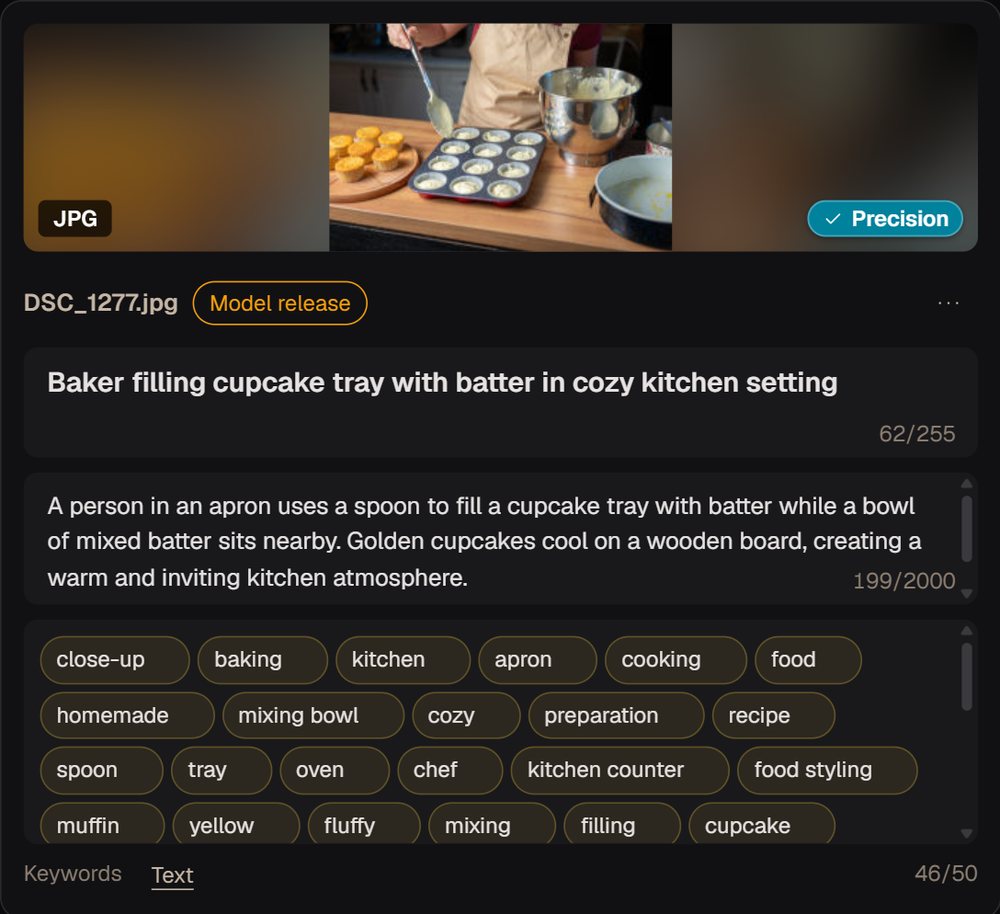
- Baker decorating freshly baked cupcakes with fruit jam in kitchen
- XMP-dcDescription
- A baker carefully places fruit jam on top of freshly baked cupcakes cooling on a wire rack. The kitchen setting features wooden surfaces and a bowl of fresh apricots, creating a warm, inviting atmosphere.
- IPTCKeywords
- close-up, light - natural phenomenon, baking, kitchen, fruit, homemade, food, cooking, yellow, summer, recipe, preparation, decoration, rustic, food styling, decorating, baked, apricot, cupcake, dessert - sweet food, sweet food, bakery, baked pastry item, food and drink, freshness, orange color, hobbies, preparing food, domestic kitchen, baker - occupation, rack, chef, interior decor, dessert topping, lifestyles, people, real people, real life, photography, ingredient
- IFD0Model
- NIKON Z 6_2kept as it was
40 keywords, in the file. Open it in any viewer that reads IPTC and XMP.
No CSV in the middle
The usual route is a spreadsheet: keyword somewhere else, export a CSV for each agency, upload the files, then check that every row landed on the right file. Here the text goes into the files, and you are done.
-
 1
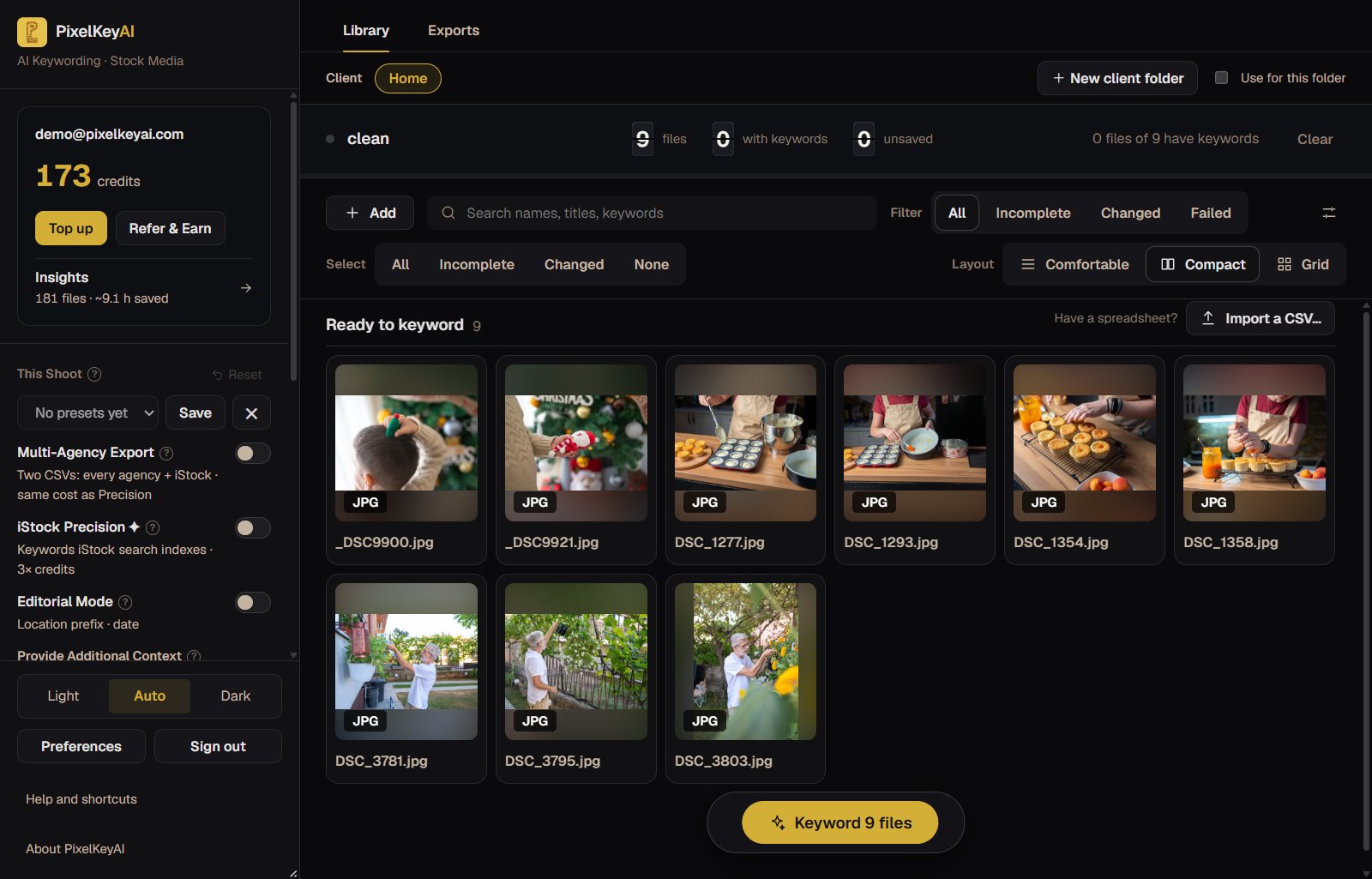
Drop the shoot on the window
Files or whole folders, from anywhere on your computer. Each one becomes a card.
-
 2
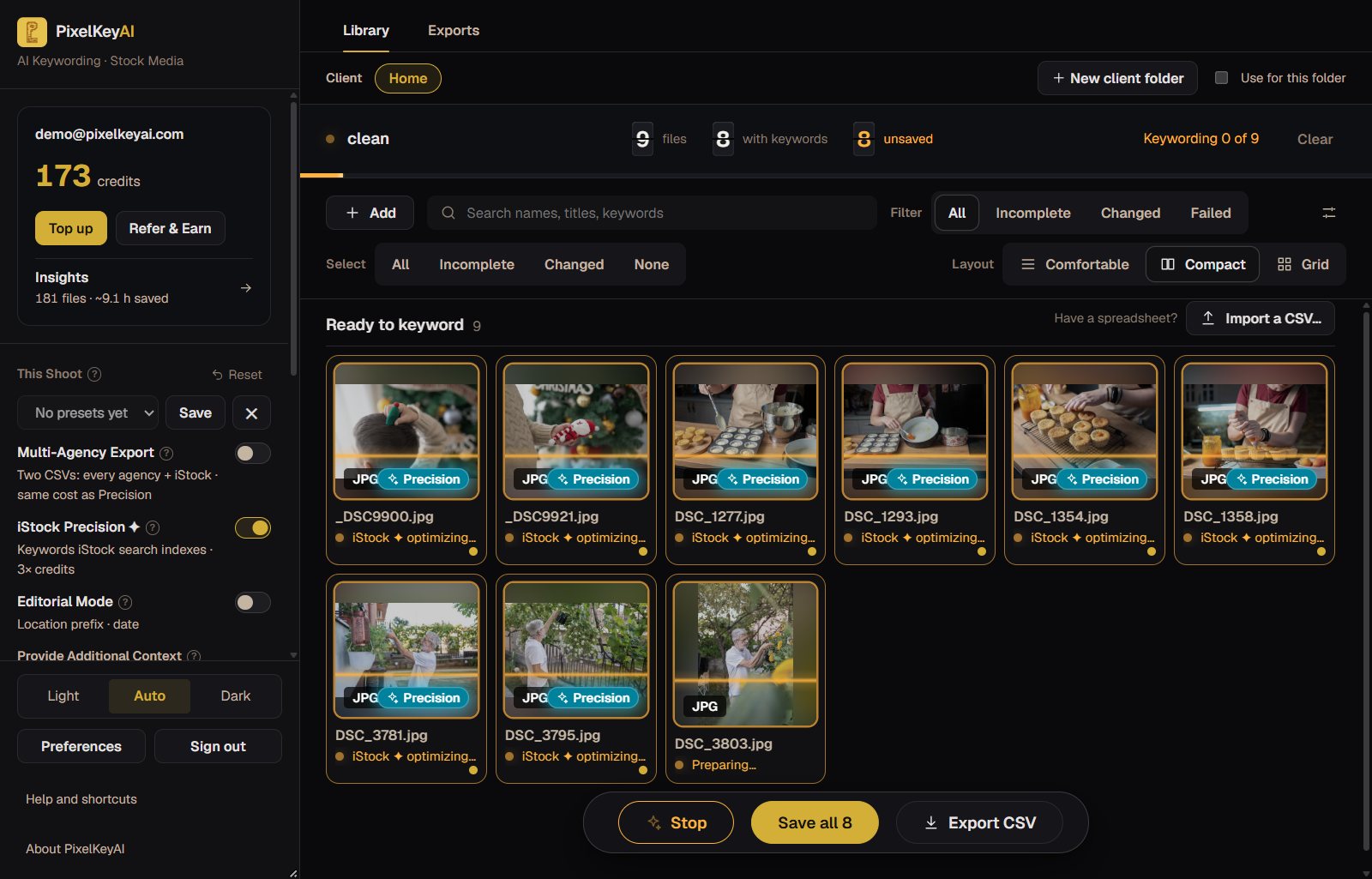
Keyword with AI, or type your own
One button drafts titles, descriptions and keywords for the whole batch. Edit anything you like.
-
 3
Press Save all
The text is written into every file. Nothing in a file changes until you press Save.
A desktop app, not a website
PixelKeyAI also runs in your browser. Both keyword with the same engine; they differ in where your files are.
The desktop app
- Works on the files where they already are, in folders of any size.
- Edits and saves straight into the files, with no account.
- A CSV is optional, for the agencies that still ask for one.
The website
- Nothing to install, and it works on any computer.
- You keyword a batch, then download the files or a CSV.
iStock Precision keywords, without the spreadsheet
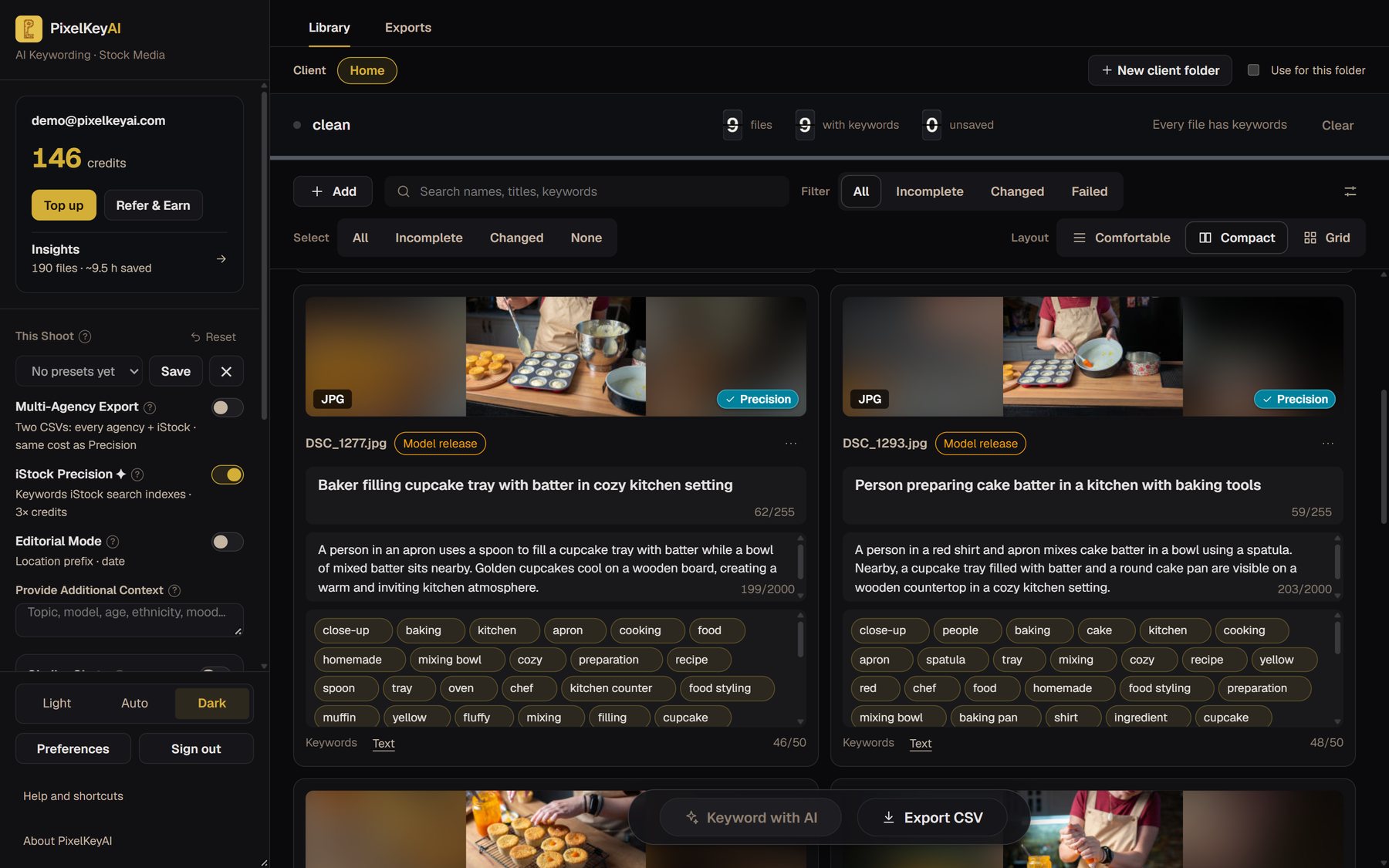
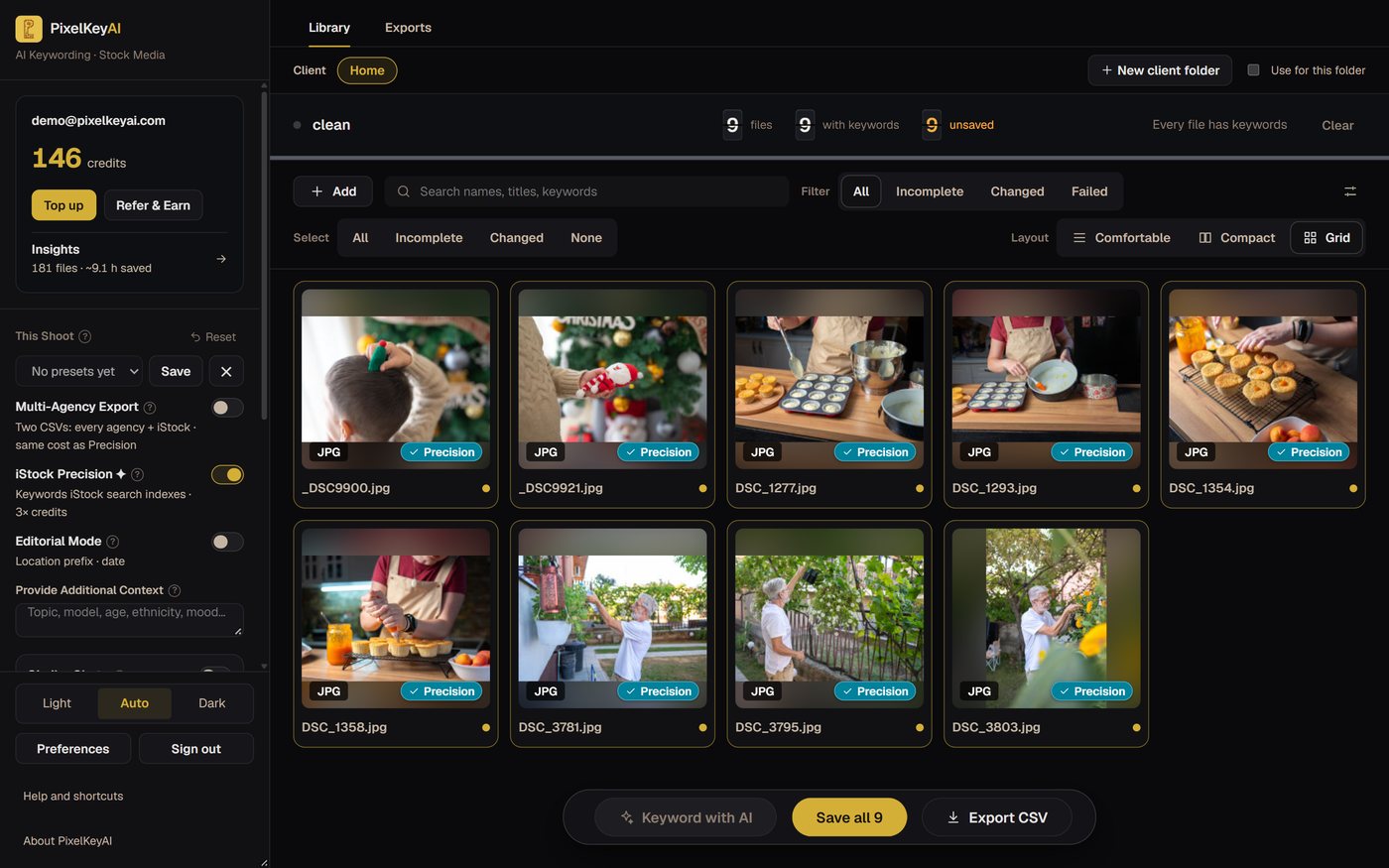
Switch on iStock Precision before you keyword and each file gets a keyword set shaped around real iStock search terms, not guesses. The Precision badge on a picture shows which files got it, so you can see which files are ready for iStock.
- Works on a whole shoot. Drop the folder, press Keyword, and every card gets its set.
- Already keyworded your files? Improve keywords for iStock runs Precision on them, so you do not start over.
- Selling the same files elsewhere? Multi-Agency Export keeps an iStock set and a natural set side by side.
Precision triples the cost of a file. An image costs 1 credit and a video 2, and the app shows the total before you start.
Built for a whole shoot, not one photo
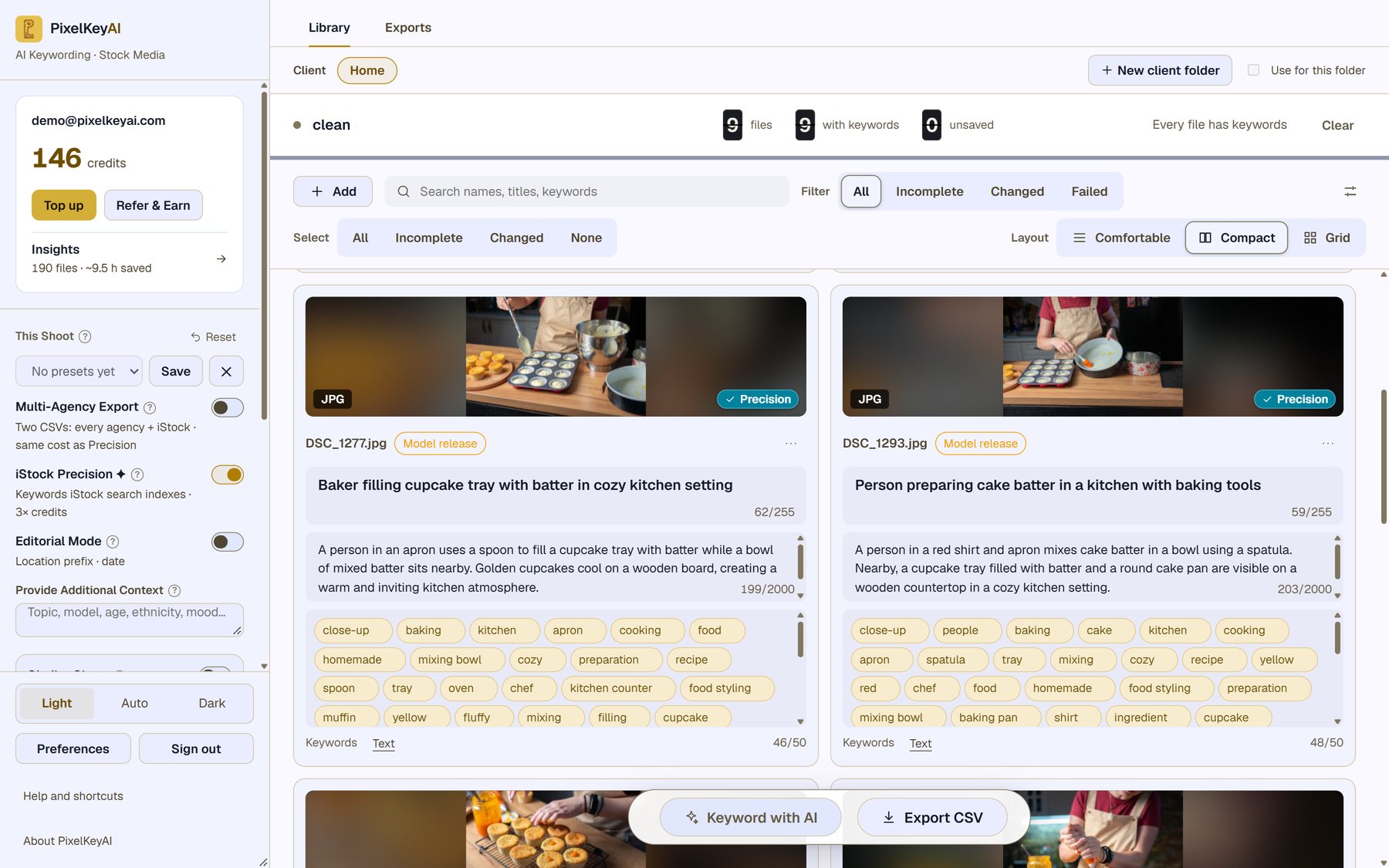
Real screens from the app, with a real batch of nine photos.
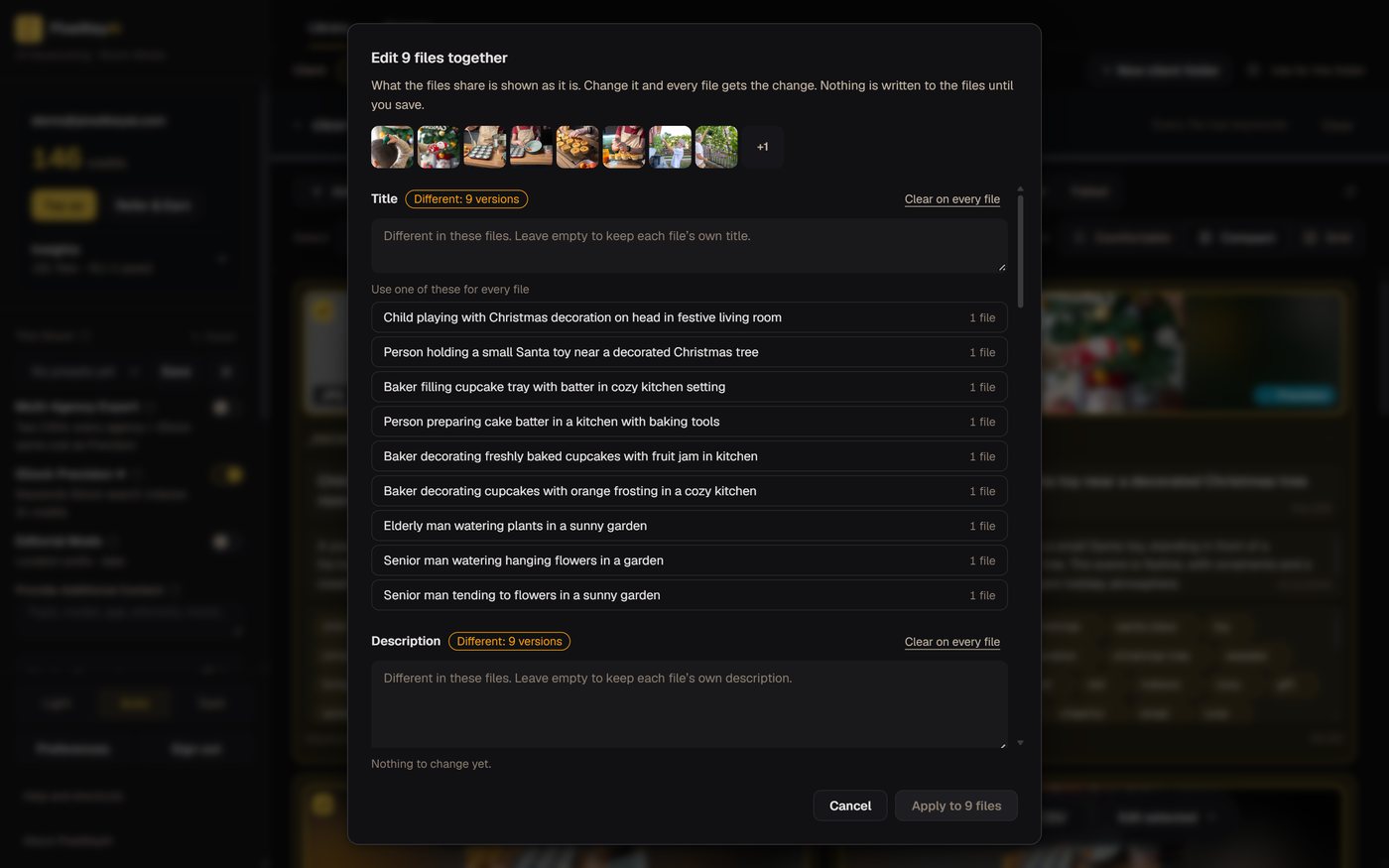
Select files and add, remove or find and replace a keyword on all of them, set one title, or copy metadata from one file to the rest. Everything can be undone, and nothing is written until you save.
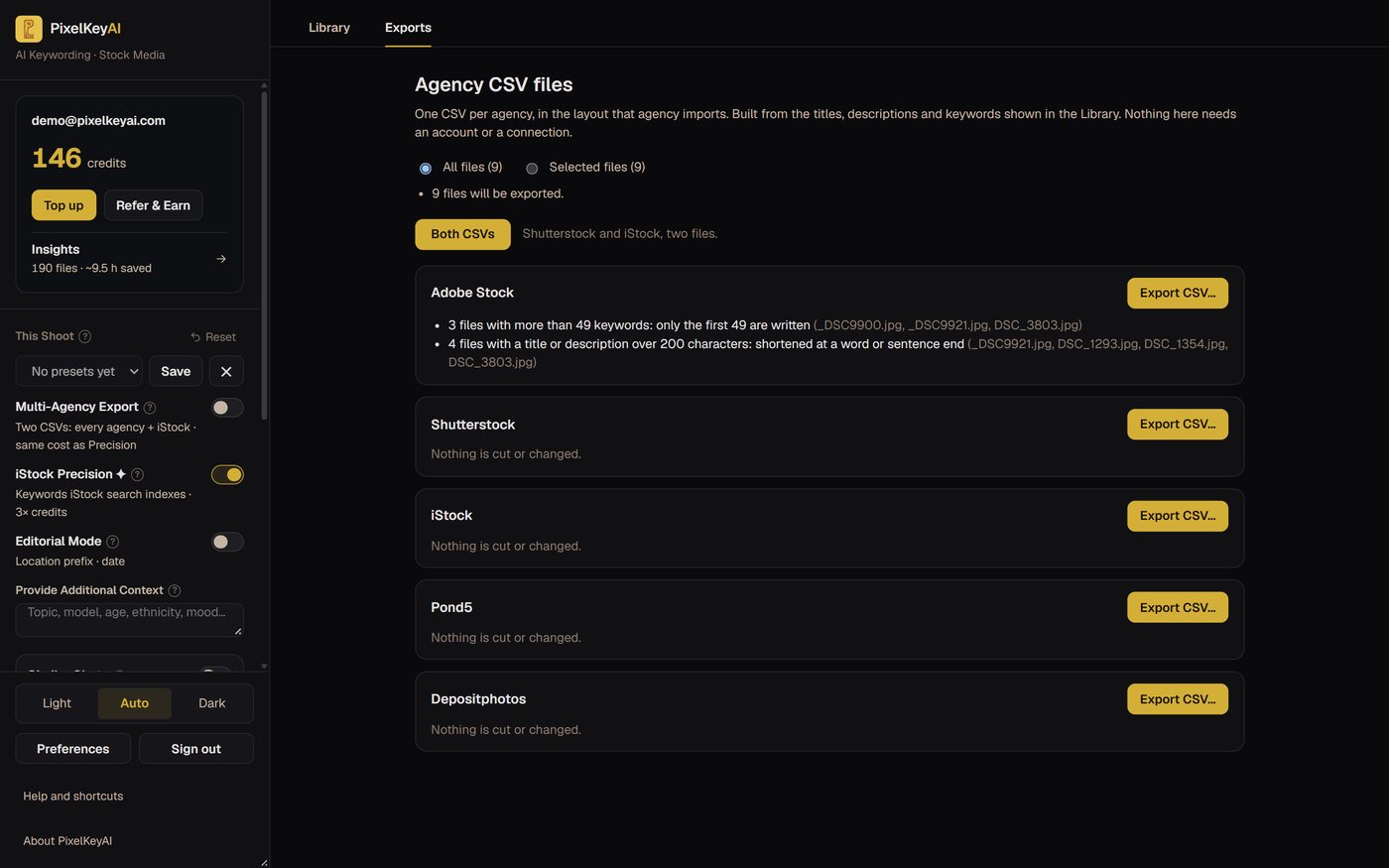
You do not need a CSV, but you can have one. The Exports tab builds the layout each agency imports, and tells you plainly when a title or keyword list had to be shortened. You can import a CSV of your own text too.
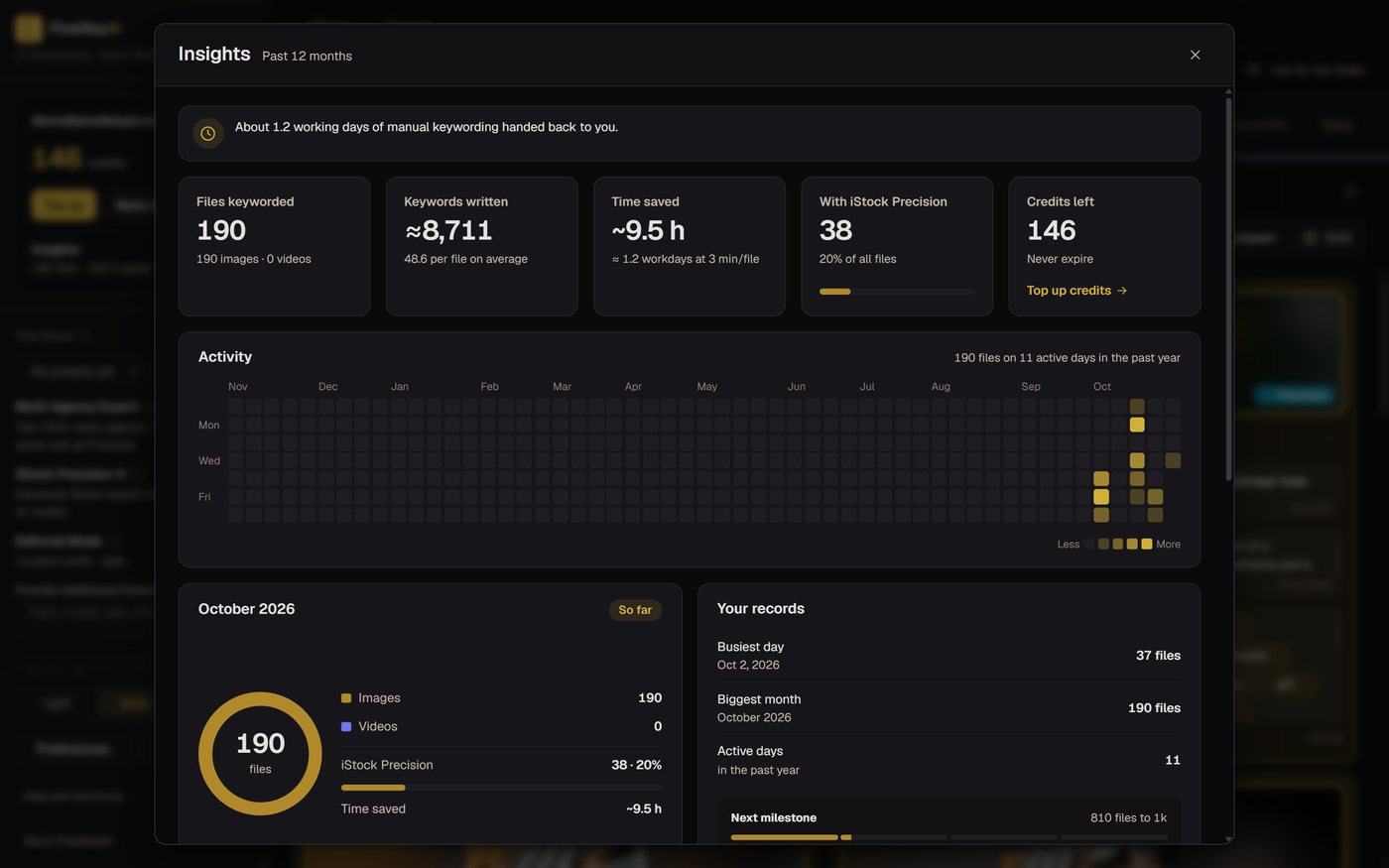
Insights keeps count of the files you have keyworded, the keywords written and the hours handed back to you. The numbers come from your own account.
What gets written into each kind of file
Your original pixels are never touched, and everything else already in the file is kept. Only the fields you changed are written, and a backup copy of each file is optional.
| File type | What the app writes |
|---|---|
| JPEG, TIFF, DNG | XMP, IPTC and EXIF |
| PNG, WebP, HEIC | XMP and EXIF |
| Camera RAW | A sidecar file next to the RAW. The RAW itself is never opened for writing. |
| MP4, MOV, M4V | XMP and the QuickTime keyword list |
| MKV, AVI, WebM and similar | Nothing. These formats cannot hold keywords, so you keyword them and export a CSV. |
The editor is free, with no account
- Open files and folders, edit titles, descriptions and keywords.
- Batch edits, undo, search and filters across the whole shoot.
- Import a CSV, export an agency CSV.
- Works offline. Your files stay on your computer.
AI keywording uses credits
- Titles, descriptions and keywords for a whole batch, in the same engine as the website.
- iStock Precision, Similar Shots, Multi-Agency Export, Editorial Mode, banned keywords and client folders.
- An image costs 1 credit and a video 2. Precision triples the cost, and the total is shown before you start.
- Credits never expire. A new account comes with free credits to try it.
Installing it
Three short steps, once. Neither installer carries a paid publisher certificate yet, so each system asks you to confirm the first time.
On Windows
Download the installer
Press Download for Windows. The file is PixelKeyAI-setup.exe. Windows 10 and 11 are supported.
Right-click it and run it as administrator
In your Downloads folder, right-click the file and choose Run as administrator, then press Yes when Windows asks whether to allow it. Windows names an unknown publisher because the installer has no paid publisher certificate yet.
Open a folder
You can edit metadata straight away, with no account. Sign in from the app to keyword with AI.
Opened it with a double-click instead and Windows showed a blue "Windows protected your PC" screen? Press More info, then Run anyway. This only happens for the first install.
On a Mac
Open the disk image
Press Download for Mac, open PixelKeyAI.dmg and drag PixelKeyAI into Applications. It runs on Macs with Apple silicon or Intel.
Open it from Applications
The first time, macOS says it could not verify the app, because it is not registered with Apple yet. Press Done, not Move to Trash.
Allow it in System Settings
Open System Settings, then Privacy & Security, scroll down to Security and press Open Anyway next to PixelKeyAI, then confirm with your password. If "Allow applications from" is set to App Store only, choose App Store & Known Developers first. Only the first time.
On macOS 14 or older you can also Control-click the app, choose Open, then Open.
Questions
Put the keywords in the files, not in a spreadsheet
It takes a minute to install, and you can edit metadata without an account.
Thanks for downloading PixelKeyAI
Your download should start in a moment. If it did not, download it again.
- Open your Downloads folder, right-click PixelKeyAI-setup.exe and choose Run as administrator.
- Press Yes when Windows asks whether to allow it. It names an unknown publisher because the installer has no paid certificate yet.
- Double-clicked it and got a blue "Windows protected your PC" screen? Press More info, then Run anyway.
- Open PixelKeyAI.dmg and drag PixelKeyAI into Applications.
- Open it from Applications. macOS says it could not verify the app: press Done, not Move to Trash.
- Open System Settings, then Privacy & Security, scroll down to Security and press Open Anyway next to PixelKeyAI. Confirm with your password.
Then open a folder. Editing is free with no account; sign in from the app to keyword with AI.